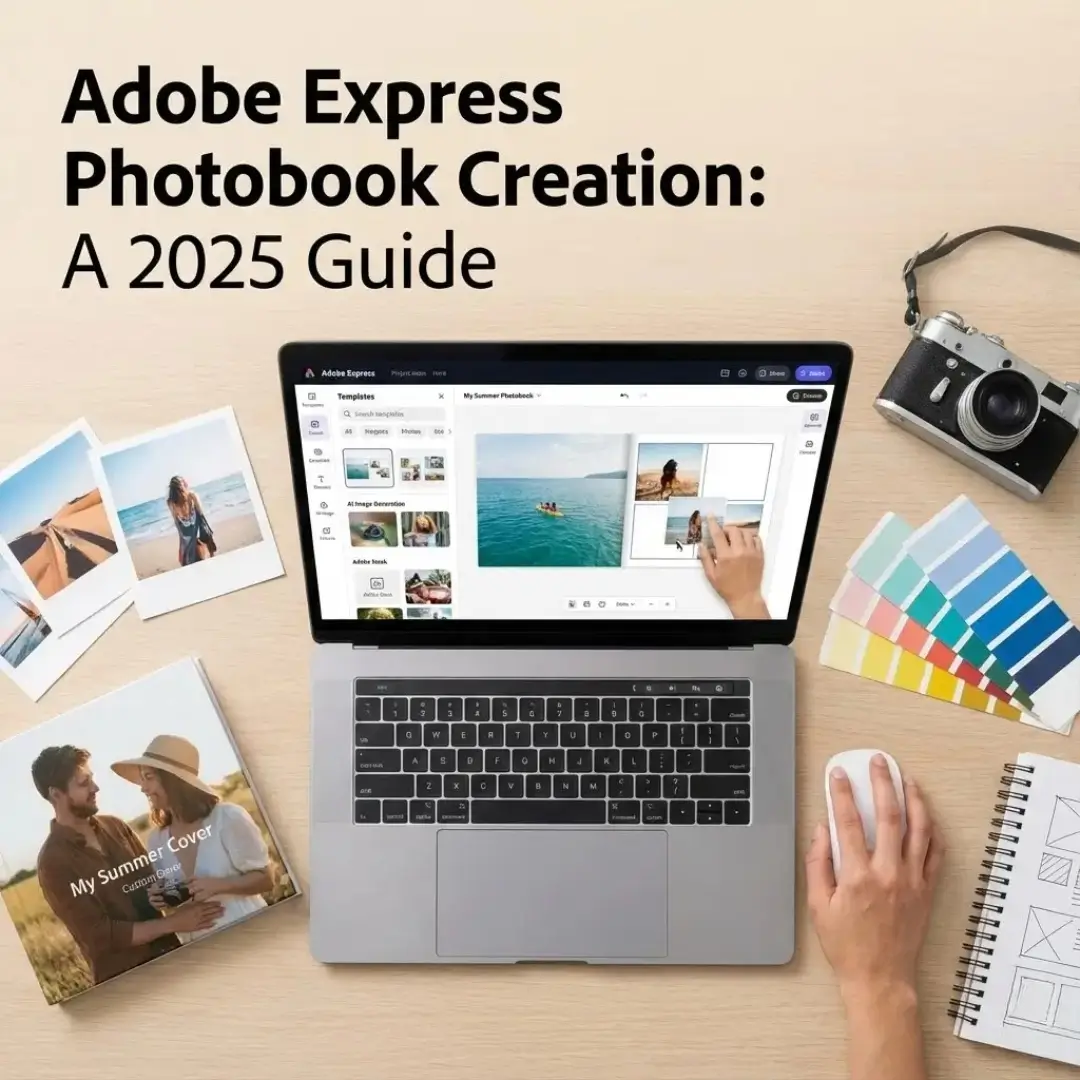
Introduction
You have a camera roll full of memories, but turning them into a beautiful, printed album feels like a daunting task. Many photobook builders are either too restrictive or too complicated, leaving your creative vision stuck on the screen. Adobe Express, known for its powerful and user-friendly design tools, offers a compelling solution for creating custom photobooks.
If you’re wondering how to get started with Adobe Express photobooks, you’re in the right place. This guide will walk you through the entire process, from choosing a template to exporting your final design for printing. You’ll learn how to leverage Adobe’s features to create a professional-quality album with ease.
Why Choose Adobe Express for Photobooks?
Adobe Express stands out in the crowded field of design tools for a few key reasons. It combines the power of Adobe’s professional software with the simplicity of a web-based editor, making it accessible to everyone, regardless of skill level. It’s not just for social media graphics; it’s a robust tool for print projects.
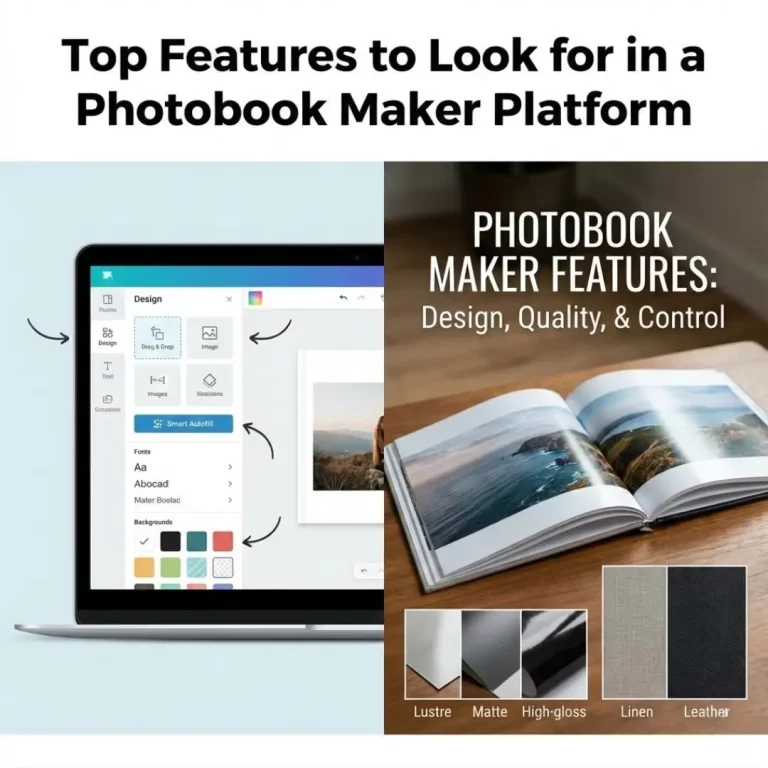
The platform is packed with features that are perfect for designing Adobe Express photobooks:
- Vast Template Library: Start with thousands of professionally designed templates.
- Adobe Stock Integration: Access a massive library of photos, icons, and design assets.
- AI-Powered Features: Use generative AI to create custom images and text effects.
- Brand Kits: Maintain a consistent look and feel across your entire project.
A Step-by-Step Guide to Creating Your Photobook
Ready to design your album? Follow these simple steps to bring your photobook to life.
Step 1: Set Up Your Document
The first step is creating a new multi-page project. In Adobe Express, you can select “Custom size” to match the specifications of your chosen printing service (e.g., 8×8 inches, 8.5×11 inches).
- Log in to Adobe Express and click the plus (+) icon to start a new project.
- Select “Custom size” and input your desired dimensions.
- Choose whether you want to start from a blank page or browse the extensive template library. Searching for “photobook” or “photo album” will give you dozens of great starting points.
Step 2: Choose a Theme and Customize Your Cover
Your cover is the first thing people will see, so make it count. Adobe Express provides countless templates that you can adapt. Look for a design that matches the mood of your photos, whether it’s a modern family album or a vintage matted photo album.
- Select a Template: Find a cover design you like.
- Add Your Title: Click the placeholder text to add your own title.
- Upload Your Cover Photo: Drag and drop your best photo onto the cover.
- Customize Fonts and Colors: Use the editing panel to tweak fonts and colors to match your style. You can even use the eyedropper tool to pull a color directly from your photo.
Step 3: Design Your Interior Pages
This is where your story unfolds. Adobe Express makes it easy to add pages and create unique layouts.
- Add Pages: Click the “Add” button to add a new page. You can choose to duplicate the current layout or add a blank one.
- Upload Your Photos: Upload your entire photo collection to the project. The editor will display them in a gallery for easy access.
- Create Layouts: Drag and drop photos onto the page. You can use pre-made grid layouts or arrange them freely. This flexibility is great for building everything from a simple two-photo display to a complex collage.
Pro-Tip: Use the “Layout” suggestions in the editing panel. Adobe Express will offer different ways to arrange your selected photos, saving you time and inspiring new ideas.
Step 4: Enhance Your Pages with Creative Elements
One of the biggest advantages of using Adobe Express photobooks is the access to a universe of creative assets.
- Text and Captions: Add text boxes to tell the story behind your photos. Experiment with different fonts and styles from the Adobe Fonts library.
- Stickers and Icons: Search for “Design Assets” to find thousands of stickers, illustrations, and borders to decorate your pages. For a travel photo book, you could add map icons or airplane stickers.
- Generative AI: Use the “Text to Image” feature to create unique background patterns or decorative elements that don’t exist anywhere else. Just describe what you want, and the AI will generate it for you.
Step 5: Export Your Photobook for Printing
Once your design is complete, you need to export it in a format that your print provider can use. Adobe Express gives you a print-ready PDF.
- Click the “Download” button in the top right corner.
- Select “PDF” as the file type.
- CRITICAL: Check the box for “Include bleeds.” This adds a small margin around your pages to ensure your photos print to the very edge without white borders.
- Click “Download” to save the high-resolution file to your computer.
From there, you can upload the PDF to your favorite printing service, like TeoPrint, to have it professionally printed and bound.
Tips for a Professional-Looking Photobook
- Stay Consistent: Use a limited color palette and 2-3 consistent fonts throughout your book for a cohesive look. Adobe’s “Brand Kit” feature is perfect for this.
- Mind the Gutter: When designing, be aware of the center crease of the book (the gutter). Avoid placing important details, like faces, directly in the center of a two-page spread unless you are printing a layflat book.
- Vary Your Layouts: While consistency is key, don’t use the exact same layout on every page. Mix full-page photos with multi-photo collages to keep the viewer engaged. You can find some great creative collage ideas to inspire you.
- Tell a Story: Think about the narrative flow. Organizing your photos chronologically is a simple way to create a compelling story.
Conclusion: Your Vision, Powered by Adobe
Creating Adobe Express photobooks offers the perfect blend of creative freedom and user-friendly design. With its powerful AI features, vast template library, and seamless export options, you can move beyond generic layouts and craft an album that is truly your own. It puts professional-grade tools in your hands, allowing you to design a stunning, print-ready book without the steep learning curve.
Whether you’re making a wedding album, a family yearbook, or a portfolio of your work, Adobe Express provides everything you need to transform your digital memories into a tangible masterpiece.
Frequently Asked Questions (FAQs)
Q: Is Adobe Express free to use for creating photobooks?
A: Adobe Express has a free plan that includes core features and a limited selection of templates and assets. For access to the full range of premium templates, Adobe Stock photos, and advanced features like Brand Kits, you will need a premium subscription.
Q: Can I design a photobook on my phone with Adobe Express?
A: Yes, Adobe Express has a mobile app that is surprisingly powerful. You can create an entire photobook on your phone or tablet, making it easy to design on the go. However, for fine-tuning details, a desktop computer may be easier to work with.
Q: Does Adobe Express print photobooks directly?
A: No, Adobe Express is a design tool, not a printing service. You must download your completed project as a print-ready PDF and then upload it to a separate photobook printing company to have it physically produced and shipped.
Q: What is a “bleed” and why do I need it?
A: A bleed is a small area of your design that extends beyond the final trim edge of the page. When the book is printed and cut, this extra margin ensures your background colors or images go all the way to the edge, preventing any accidental white borders. Always export your PDF with bleeds included for professional results.
Q: How do I ensure my photos look sharp when printed?
A: For the best quality, use high-resolution photos (ideally 300 DPI at the intended print size). Adobe Express will warn you if you enlarge a photo too much and its quality becomes low. Avoid using images saved from social media, as they are often heavily compressed.
Q: Can I use AI to help design my Adobe Express photobook?
A: Yes. Adobe Express has integrated its Firefly AI technology. You can use “Text to Image” to create custom backgrounds or illustrations, and “Text Effects” to apply unique styles to your titles. This is a powerful way to add one-of-a-kind elements to your book.
Q: Can I collaborate with someone else on a photobook in Adobe Express?
A: Yes, Adobe Express allows you to invite others to view, comment on, or edit your project. This is a great feature for creating a collaborative album with friends or family, such as a family reunion photobook.