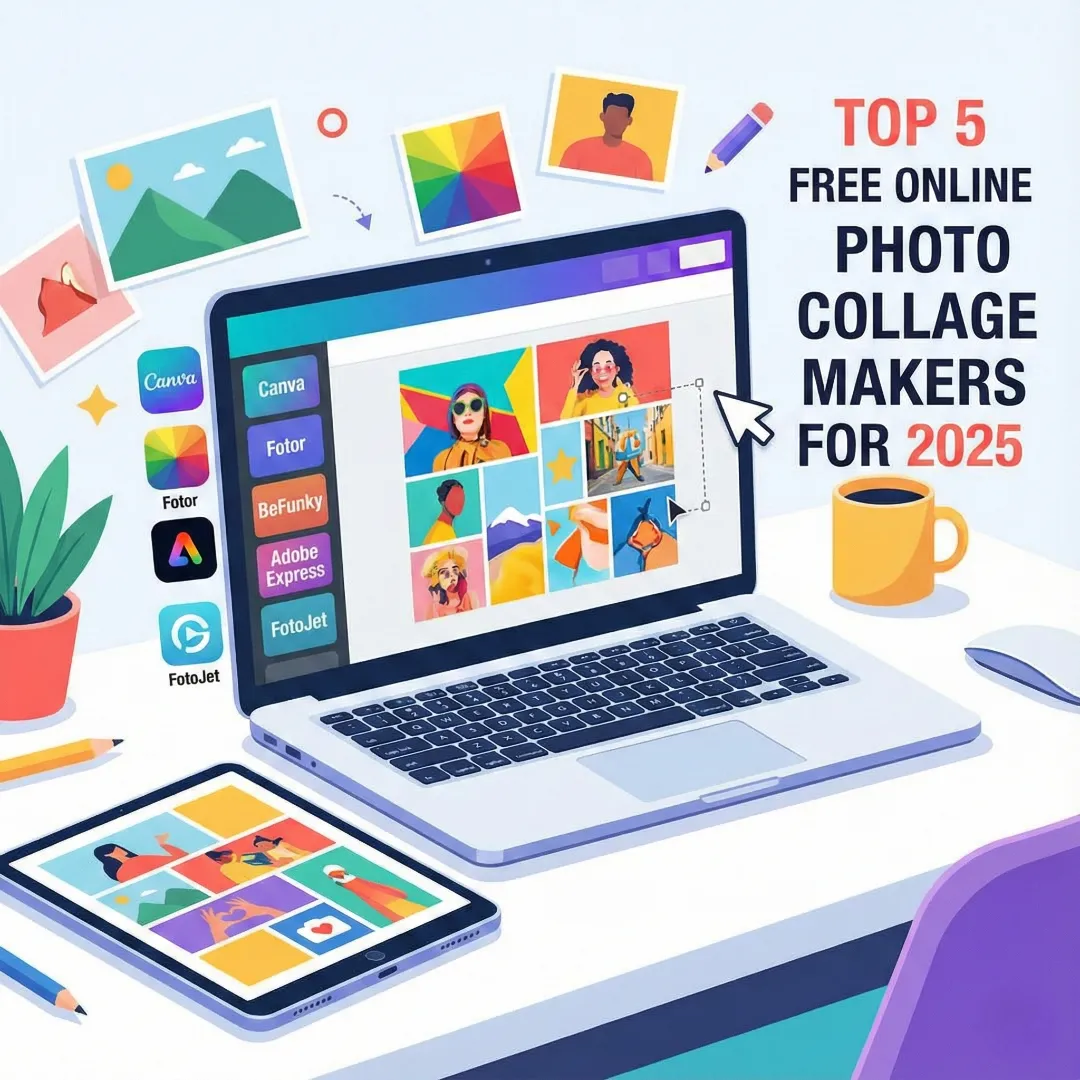
Photo collages are a wonderful way to bring your favorite memories together into a single, beautiful image. Whether for social media, a personalized gift, or a piece of wall art, a well-made collage tells a story. But you don’t need expensive software to create one. There are amazing free tools available right in your web browser.
Finding the right collage maker online free can be overwhelming with so many options out there. Some are clunky, covered in ads, or produce low-quality results. To help you cut through the noise, we’ve tested and selected the top 5 free online photo collage makers that are easy to use and deliver fantastic results.
Why Use an Online Photo Collage Maker?
Before we dive into the list, let’s talk about why using an online tool is so convenient.
- No Downloads Required: You can start creating immediately without installing any software.
- User-Friendly Interfaces: Most of these tools are designed for beginners, with drag-and-drop functionality.
- Templates Galore: You get access to hundreds of pre-designed layouts, saving you time and effort.
- Free to Use: All the tools on our list offer robust free versions, perfect for any project.
Now, let’s explore the best free collage makers available today.
1. Canva
Canva is a powerhouse in the world of online design, and its collage-making capabilities are second to none. It’s incredibly intuitive, making it the perfect collage maker online free for beginners, while also offering advanced features for those who want more control.
Best for: Everyone, from social media users to people creating prints. Its versatility is unmatched.
How to Use Canva to Make a Collage:
- Choose a Template: Go to Canva and search for “Photo Collage.” You’ll find thousands of templates for different themes and occasions.
- Upload Your Photos: In the editor, go to the “Uploads” tab on the left-hand side and upload the images you want to use.
- Drag and Drop: Simply drag your uploaded photos and drop them into the template’s placeholders. They will automatically snap into place.
- Customize Your Collage: Click on elements to change colors, add text, or apply filters. You can also browse Canva’s extensive library of graphics and stickers to add extra flair.
- Download and Share: Once you’re happy with your creation, click the “Share” button in the top right, then “Download.” Choose your preferred file type (JPG for smaller files, PNG for higher quality).
Pro-Tip: Canva is also a great tool for designing full projects, like a Canva photobook tutorial can show you. The skills you learn making collages can be applied to larger memory-keeping projects.
2. Fotor
Fotor is another popular online photo editor that offers a dedicated and powerful collage maker. It provides a wide range of classic grid layouts as well as more artistic and funky templates, giving you plenty of creative freedom.
Best for: Quick, grid-based collages and artistic arrangements.
How to Use Fotor to Make a Collage:
- Open the Collage Maker: Navigate to Fotor’s website and select the “Collage Maker” tool.
- Select a Layout: On the left, you can choose from various grid styles. You can adjust the number of photos and the shape of the grid.
- Import Your Photos: Click the “Import” button on the right to upload your images from your computer.
- Populate the Grid: Drag your photos from the right-hand photo tray into the cells of your chosen layout.
- Adjust and Finalize: You can adjust the border thickness, round the corners, and change the background color. Fotor also allows you to add text and stickers.
- Save Your Work: Click the “Save” button at the top of the screen to download your finished collage.
3. BeFunky
BeFunky stands out with its fun, easy-to-use interface and a fantastic Collage Wizard. This feature automatically generates several collage layouts for you after you upload your photos, which is a huge time-saver.
Best for: Users who want a quick, automated way to generate beautiful collage layouts.
How to Use BeFunky to Make a Collage:
- Start with the Collage Maker: Head to BeFunky and choose “Collage Maker” from the main menu.
- Use the Collage Wizard (Optional): For the fastest results, click “Collage Wizard,” select your photos, and let BeFunky generate layouts for you. Pick your favorite to start editing.
- Or, Choose Manually: Alternatively, you can go to the “Layouts” tab and select a grid. Upload your photos using the “Image Manager.”
- Arrange and Edit: Drag your pictures into the cells. You can easily swap images or adjust their position within the cell.
- Customize: Use the “Customize” tab to change the background, spacing, and corner rounding. BeFunky also has a full photo editor built-in if you need to touch up any images.
- Save Your Collage: Click “Save” at the top and choose your save location (computer, Google Drive, etc.).
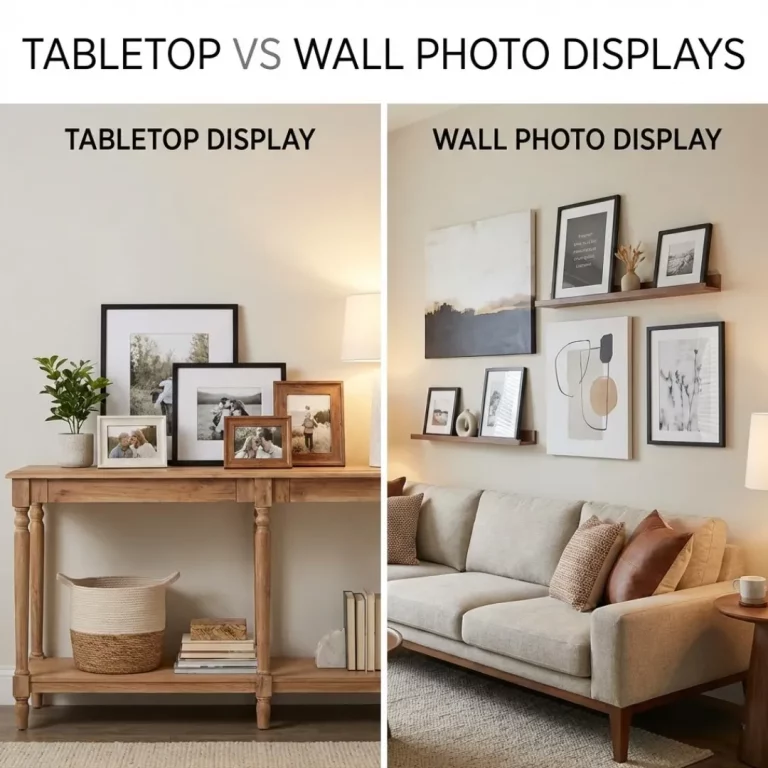
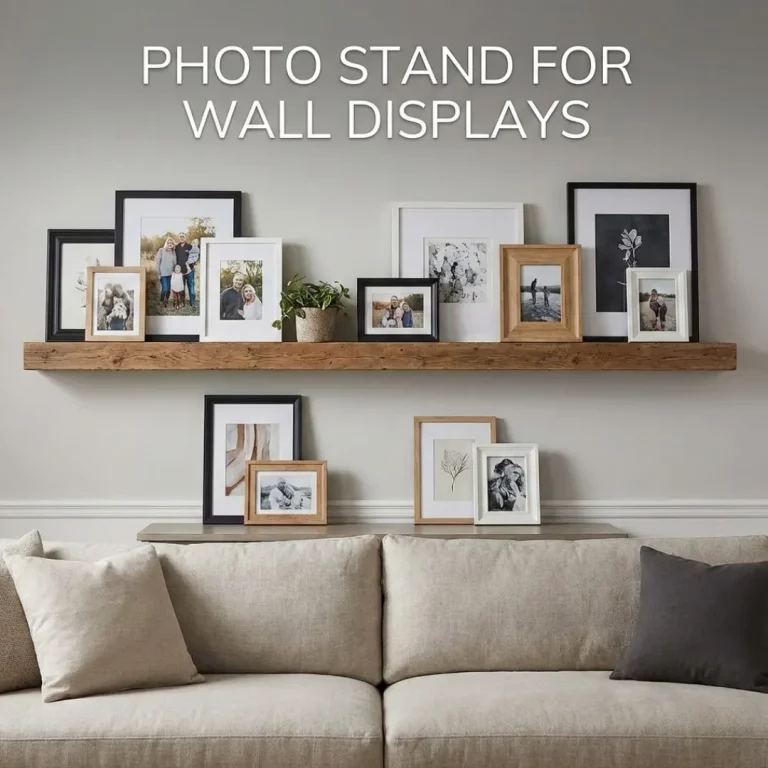
Once your collage is done, you might think about how to display it. Learning a few frame placement tips can help you find the perfect spot for your new creation.
4. Adobe Express
From the creators of Photoshop, Adobe Express (formerly Adobe Spark) is a powerful and free design tool. Its collage maker online free is sleek, professional, and seamlessly integrates with other Adobe services.
Best for: Those who want a polished, professional look with high-quality templates.
How to Use Adobe Express to Make a Collage:
- Search for Templates: On the Adobe Express home page, type “collage” into the search bar to browse a wide variety of templates.
- Select a Layout: Choose a template that fits your vision. The editor will open.
- Add Your Photos: Click on a photo in the template and choose “Replace” to upload your own image. You can also add photos from your computer, Dropbox, or Google Photos.
- Customize Your Design: Adobe Express offers powerful editing options. You can easily change text, apply your brand colors, and add design assets from Adobe’s free library.
- Download: Click the “Download” button in the top right corner and select your file format.
5. PhotoJet
FotoJet is a straightforward and accessible collage maker that gets the job done without any fuss. It offers hundreds of templates, from simple grids to more creative designs like photo comics and fun photo cards.
Best for: Quick projects and users who want a simple, no-frills experience.
How to Use FotoJet to Make a Collage:
- Choose a Design: Go to FotoJet’s website, click “Create a Design,” and then select “Collage.”
- Select a Template: Browse the template categories on the left and pick one you like.
- Add Photos: Click the “Add Photos” button in the photo panel to upload your images.
- Drag and Drop: Arrange your pictures by dragging them into the template’s frames.
- Personalize: Use the tools on the left to add text, clipart, or a custom background.
- Save Your Collage: Click “Save” on the top toolbar, give your collage a name, and choose the size and quality.
Conclusion: Turn Your Photos into a Masterpiece
You don’t need to be a graphic designer to create a beautiful photo collage. With the help of a great collage maker online free, you can easily combine your favorite memories into a shareable work of art. Tools like Canva, Fotor, and BeFunky make the process simple, fun, and completely free.
Once you’ve designed your collage, the next step is bringing it to life. Consider printing your creation to display in a multi-photo frame or as a stunning piece of wall art.
Ready to get started? Pick one of these amazing tools and begin creating your photo collage today!
Frequently Asked Questions (FAQ)
Q: What is the best free online collage maker?
A: Canva is widely considered the best all-around free online collage maker due to its massive template library, user-friendly interface, and extensive customization options. However, tools like Fotor and BeFunky are also excellent for different needs.
Q: Can I make a collage without a grid?
A: Yes. Most collage makers, especially Canva and Adobe Express, allow you to start with a blank canvas. You can freely place, resize, and rotate your photos to create a freestyle or scrapbook-style collage without being confined to a grid.
Q: How many pictures can I put in a collage?
A: This depends on the tool and the template you choose. Most online collage makers offer layouts that can accommodate anywhere from two to 20+ photos. For a high number of photos, it’s best to choose a simple grid layout to avoid looking too cluttered. There are many multi-photo collage frames that hold many images.
Q: Will the collage be high resolution?
A: Yes, all the recommended tools allow you to download your collage in high resolution, suitable for printing. When downloading, look for options to save as a PNG file or select the highest quality setting for a JPG file.
Q: Can I add text to my photo collage?
A: Absolutely. All five collage makers on our list have robust text editing tools. You can add captions, dates, or titles using a wide variety of fonts, colors, and styles to personalize your creation further.
Q: Do I need to create an account to use these tools?
A: Most online collage makers, including Canva and Adobe Express, require you to sign up for a free account to save and download your work. This also allows you to save your projects and come back to them later.Q: Can I make a collage on my phone?
A: Yes. All the services listed (Canva, Fotor, BeFunky, Adobe Express, and FotoJet) have mobile apps for both iOS and Android. This allows you to create and edit collages directly from your phone using the photos in your camera roll.