Introduction
We have all been there: you are excited to finally print those vacation photos, you log into a website, and suddenly you are clicking buttons that don’t work, struggling with layouts that won’t align, and feeling your creativity drain away. Bad software design can turn a fun project into a headache. When creating a keepsake, the tool you use should feel like a helpful assistant, not an obstacle course.
For many creators, the “usability” of the platform is just as important as the print quality. A smooth, intuitive interface means you finish your project faster and enjoy the process more. In this photobook UX review, we are putting the most popular software to the test. We will evaluate how easy they are to navigate, how flexible their design tools are, and which ones truly respect your time. By the end, you will know exactly which platform offers the seamless experience you deserve.
Why User Experience (UX) Matters in Photobook Creation
User Experience, or UX, refers to how a person interacts with a system. In the context of photobooks, good UX means you can upload photos, design pages, and checkout without needing a tutorial. It is about intuitiveness.
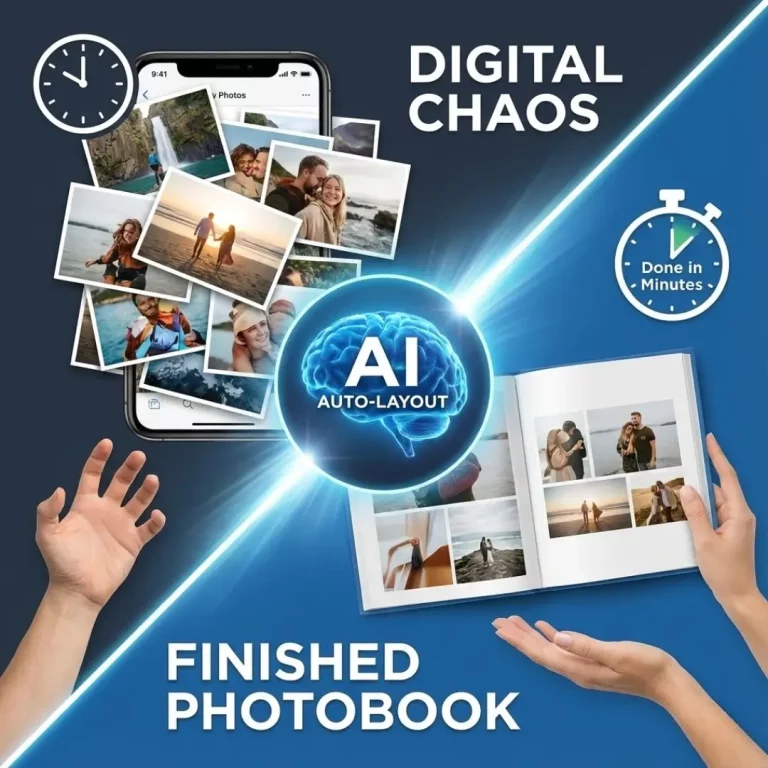
When software has poor UX, you might face lagging editors, confusing menus, or limited “undo” buttons. Conversely, excellent UX allows for creative flow. It might offer smart guides that snap photos into alignment or auto-save features that protect your work. For complex projects like a family reunion photobook, good UX is the difference between finishing the album in an evening or giving up halfway through.
Key UX Criteria We Evaluated
To conduct a fair photobook UX review, we judged platforms based on four critical pillars of usability.
1. Photo Upload and Organization
How easy is it to get your photos into the system? The best platforms connect directly to Google Photos, Instagram, and Facebook. They also allow you to sort images by date or location, which is essential when you are trying to organize photos for a cohesive album story.
2. The Editor Interface
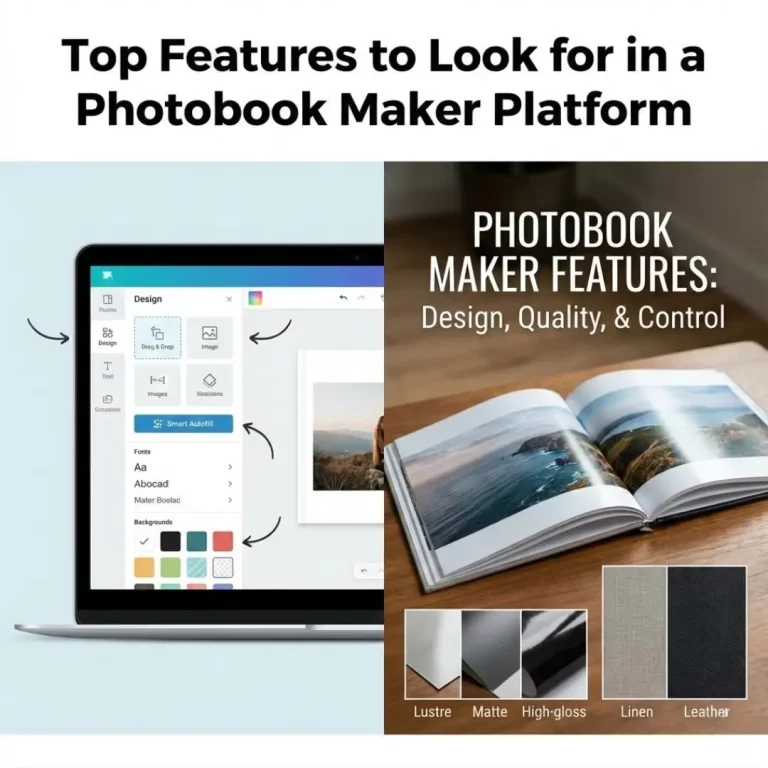
Is the workspace cluttered or clean? Can you easily find the “add text” button? We looked for drag-and-drop functionality, which is the gold standard for ease of use.
3. Customization Flexibility
Can you move elements freely, or are you locked into rigid templates? Flexible software lets you resize photos and text boxes without restriction. This is crucial if you want to add unique touches, like those found in creative photo collage ideas.
4. Mobile Responsiveness
Can you switch between your phone and computer? Good UX in 2025 means seamless cross-device compatibility.
Top Photobook Software UX Rankings
Here is how the leading platforms stack up in terms of pure ease of use.
1. Mixbook: The Gold Standard for Flexibility
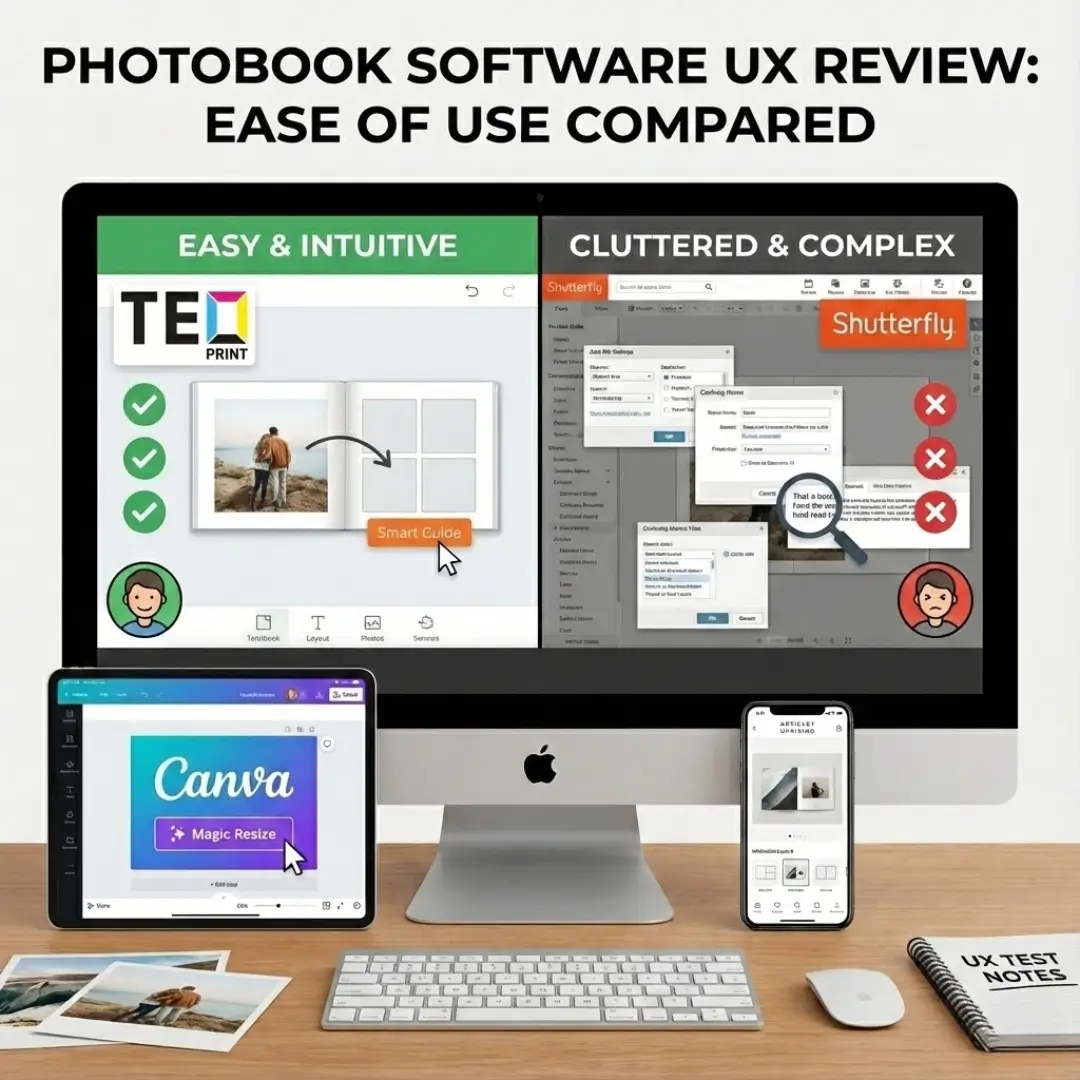
Mixbook consistently tops UX charts because it balances power with simplicity. Its editor is completely “free-form,” meaning you are never forced to stick to a template.
- UX Win: The “sticker” library is searchable and drag-and-drop, making embellishment fun rather than tedious.
- Best For: Users who want total creative control without a steep learning curve.
- Navigation: Menus are labeled clearly with icons and text, reducing cognitive load.
If you are planning a detailed project, like a travel photo book, Mixbook’s interface handles large photo counts without lagging.
2. Shutterfly: The Feature-Rich (But Busy) Option
Shutterfly is a powerhouse, but its UX can feel overwhelming. There are pop-ups, upsells, and endless sub-menus. However, its “Make My Book” service, where designers do the work for you, is a brilliant UX feature for those short on time.
- UX Win: Extensive auto-fill capabilities that arrange photos chronologically.
- Drawback: The interface can feel cluttered, with too many options vying for attention.
- Best For: Users who want automated help and don’t mind navigating a busy screen.
3. Canva: The Modern Design Experience
While not a dedicated photobook printer (though they do print), Canva’s design UX is unmatched. It is built for non-designers. The sidebar is intuitive, and the search function for elements is powerful.
- UX Win: The “Magic Resize” and alignment guides make it impossible to create a messy layout.
- Best For: Those who want to use AI photobook design tools to speed up the process.
4. Artifact Uprising: Minimalist and Focused
Artifact Uprising’s editor reflects its brand: clean, minimal, and restrictive. You cannot drag photos just anywhere; you must choose a layout. For some, this is bad UX (lack of freedom). For others, it is excellent UX because it prevents design mistakes and ensures a beautiful result.
- UX Win: A distraction-free workspace that focuses entirely on the photos.
- Best For: Users creating high-end projects, like a wedding photo book, who want a curated look.
Common UX Pain Points to Avoid
During our photobook UX review, we encountered several recurring frustrations. Knowing these can help you avoid bad software.
The “Bleed” Confusion
Many users struggle with understanding where the page gets cut off. Good UX solves this with clear “safe zone” warnings. If your software doesn’t clearly mark margins, you risk cutting off faces. This is vital when designing full-spread images for layflat photobooks.
Low-Res Warning Failures
Nothing is worse than receiving a blurry book. The best software inspects your photos in real-time and displays a prominent warning symbol if the resolution is too low for the print size. This proactive alert is a hallmark of good user experience.
Lack of Collaborative Tools
In 2025, we expect to be able to share drafts. Poor UX platforms lock the project to one account. Superior platforms allow you to send a link for comments, which is essential if you are working on a collaborative gift or corporate photo books.
UX for Mobile vs. Desktop
A major part of any photobook UX review is checking mobile capability. Designing on a phone requires different interactions—swiping and tapping instead of clicking.
- Mobile Apps: Great for simple books (20-30 pages) using photos already on your camera roll. Look for apps with “swipe-to-fill” features.
- Desktop: Necessary for detailed editing, adding extensive text, or managing hundreds of photos.
If you plan to start on mobile and finish on desktop, ensure the platform supports cloud syncing. This seamless transition is often overlooked but critical for complex projects like year-in-review albums.
Conclusion: Choose the Tool That Fits Your Style
The “best” software isn’t just about the most features; it’s about the path of least resistance. A positive photobook UX review usually points to software that gets out of your way and lets your creativity shine.
If you want total freedom, look for drag-and-drop editors like Mixbook. If you want curated perfection, try the restrictive but beautiful interface of Artifact Uprising. And if you want modern ease, explore Canva or Adobe Express.
Ultimately, the right software turns the daunting task of sorting memories into a delightful afternoon of creativity. Choose wisely, and your photobook will be a joy to make, not just a joy to have.
Frequently Asked Questions (FAQs)
Q: Which photobook software is easiest for beginners?
A: For absolute beginners, Google Photos and Chatbooks offer the easiest UX. They rely heavily on automation, creating the book for you with minimal input required. You simply select the photos, and the software handles the layout.
Q: Does good UX affect the final price of the book?
A: Indirectly, yes. Platforms with sophisticated, user-friendly software often invest heavily in development, which can be reflected in slightly higher product prices. However, the time saved by using good software is often worth the extra cost.
Q: Can I edit photos inside the photobook software?
A: Most platforms offer basic editing tools like cropping, rotation, and auto-enhance filters. However, for advanced color correction or retouching, the UX is generally better in dedicated photo editing apps before you upload.
Q: What is the “gutter” in photobook design?
A: The gutter is the area where the two pages meet at the spine. Good UX software will visualize this area so you don’t place important details (like a person’s eyes) in the crease. This is less of an issue if you choose layflat binding.
Q: Can I change the book size after I start designing?
A: This is a major UX differentiator. Some platforms (like Mixbook) allow you to change sizes mid-project and will auto-adjust your layout. Others lock you into the size you initially selected, forcing you to start over if you change your mind.
Q: How do I know if my text is legible?
A: Good photobook software will show font sizes in real-time. A general UX rule of thumb is to avoid text smaller than 10pt for body copy. If the software allows zooming in on the preview, use that feature to check readability.
Q: Is it easier to make a photobook on a tablet or a computer?
A: A tablet offers a nice middle ground with touch interaction, which feels natural for moving photos. However, a computer with a mouse gives you the most precision for aligning